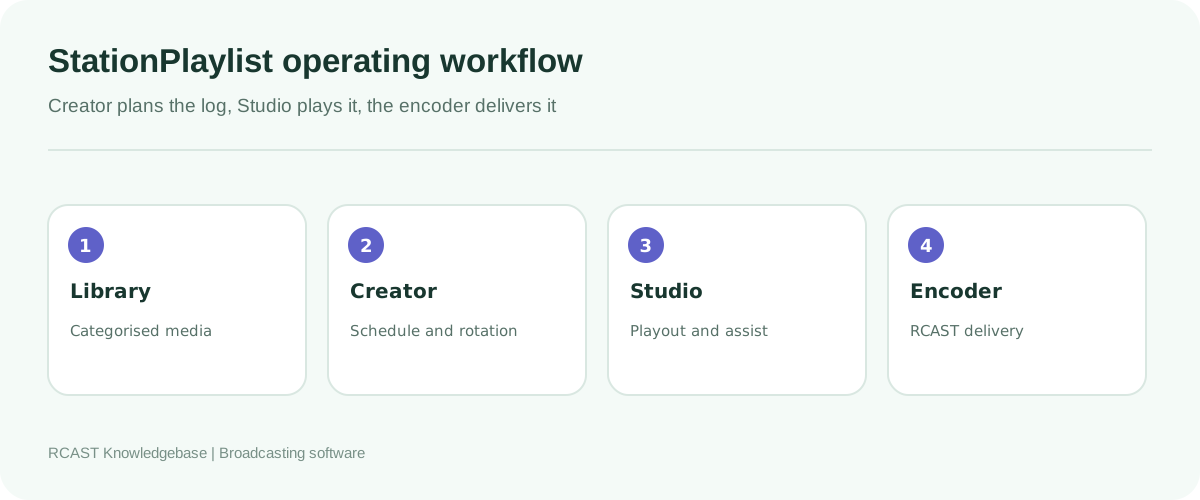
StationPlaylist combines Creator for music and spot scheduling with Studio for automated playout and live assist. Studio includes an encoder for software based workflows, while StationPlaylist Streamer is designed to capture and encode the output of an external console. This guide explains how to build the schedule, select the correct audio path and connect the resulting programme to an RCAST SHOUTcast or Icecast service.
Understand the StationPlaylist applications
Creator builds scheduled playlists from rotations, categories, spot groups and timing rules. Studio loads and plays those playlists, supports live assist and handles the programme output. Streamer is a separate encoder for a sound card line input or supported network audio source. According to the publisher, Creator and Studio are both required for the normal automation workflow, while Studio can also be configured for more limited standalone operation.
Install current supported versions from StationPlaylist and use the included setup wizard as a starting point. The product help supplied with the installed version remains the authority for menus that change between releases.
Choose internal or external encoding
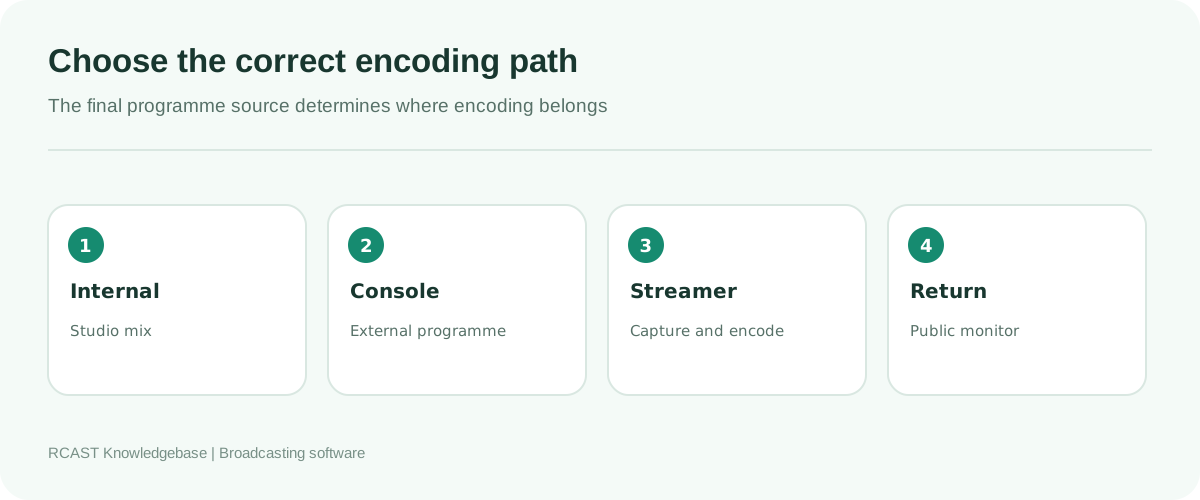
Use Studio's SPL Encoder when Studio itself creates the final programme mix. The official FAQ states that it supports formats including MP3 and AAC+ and server types including Icecast, SHOUTcast v1 and SHOUTcast v2. Enable SPL Encoder in Studio's output mixer options and configure the server profile.
Use StationPlaylist Streamer or another standalone encoder when a hardware console combines Studio, microphones, telephones and other sources. Studio's internal encoder cannot hear audio added only after Studio's output. Streamer captures the console's returned programme through a line input and sends that complete mix.
Prepare the RCAST connection
Record server type, source hostname, source port, source password and any required username, mount or SHOUTcast stream ID. Do not use the public player URL. Keep the client area login separate from source credentials.
| Field | Icecast | SHOUTcast |
|---|---|---|
| Mode | Icecast | v1 or v2 as supplied |
| Host and port | RCAST source endpoint | RCAST source endpoint |
| User | Source or assigned DJ user | Use supplied authentication mode |
| Mount | Path beginning with slash | Not used as an Icecast mount |
| Stream ID | Not used | Enter when supplied for v2 |
Build a clean media library
Store music and production files in stable locations that remain available after restart. Standardise artist and title tags, remove filename clutter and review loudness before import. Organise categories by programming function, such as Current, Recurrent, Gold, Specialty, Imaging and Commercial, rather than by arbitrary folders.
Back up the media and StationPlaylist configuration before a large import or upgrade. File backups and schedule backups are both necessary. A restored schedule is useless when its audio paths no longer exist.
Design rotations in Creator
Build a representative clock before scheduling a complete week. Alternate categories according to the station format and place IDs, promos and spots at intentional positions. Apply artist and title separation that the library can actually satisfy. Small categories cannot support long separation without more content.
Create schedule templates for normal days, weekends and special programming. Review the generated playlist, not only the rules. Look for repeated artists, awkward tempo clusters, missing files and overused imaging. Save changes under clear version names before major adjustments.
Configure Studio playout
Select the intended output device and confirm that Studio playback reaches the correct channels. Test automatic transitions, manual live assist controls, cart playback and any voice tracking workflow. Ensure the automation mode after restart is intentional.
For internal microphone use, configure Studio's supported input and monitoring options. For a permanent multi-source studio, the publisher recommends a hardware mixer as a practical route for external audio and delay free headphone monitoring. Test which signals reach the final encoder, not merely the control room speakers.
Configure SPL Encoder for an internal mix
- Enable SPL Encoder in Studio's Output options under the Mixer section.
- Open the encoder configuration and add the matching SHOUTcast or Icecast server type.
- Enter the RCAST source hostname and port.
- Enter source or assigned DJ credentials.
- Complete the Icecast mount or SHOUTcast v2 details where required.
- Select the approved codec, bitrate, sample rate and channel mode.
- Save, connect and inspect the encoder status for repeated retries.
MP3 at 128 kbps stereo is a practical compatibility baseline for a general music service. Speech can use mono and a lower rate. AAC can be efficient, but test every important player and directory before making it the primary stream.
Configure Streamer for a hardware console
Connect the console programme output to a line input on the interface. Select that input in Streamer and verify that Studio, microphones and external sources all appear on its meter. Do not connect a speaker level output to a line or microphone input.
StationPlaylist describes Streamer as a standalone Windows encoder supporting Icecast and SHOUTcast compatible servers, multiple codecs, metadata inputs and optional processing. Add the RCAST server profile, then configure metadata from Studio using the supported integration. Use the compressor and limiter conservatively because overload at the console or interface cannot be repaired later.
Configure metadata
Ensure library artist and title fields contain public information. Studio can provide now playing information to its encoder or Streamer. Test songs, station IDs, spots, voice tracks and live segments. Prevent internal filenames or commercial instructions from reaching listeners.
If an external encoder reads a text file or network metadata feed, confirm that updates continue after a restart and that file permissions allow access. Define an intentional programme title when no song is active.
Set timing and transitions
Review segue points, fade settings and silence at file boundaries. Exact time events need a policy for what happens to the preceding item. Hard interruption may be correct for news, while a music feature may allow a softer window. Test each policy with realistic content.
Voice tracks require enough intro and outro information to fit naturally. Presenters should hear the same transition used by automation. Keep original programme files so timing changes can be rebuilt without generation loss.
Commission the complete service
- Generate a test day in Creator and inspect its log.
- Load it into Studio and resolve missing media.
- Test automatic and live assist transitions.
- Verify every microphone and external source reaches the encoder.
- Connect to RCAST and listen through mobile data.
- Check levels, channels, metadata and timing.
- Leave the schedule running through several clock changes.
- Disconnect the source and verify AutoDJ or fallback.
- Restart the automation computer and confirm documented recovery.
Troubleshoot connection failures
Authentication rejected
Verify server mode, password, Icecast user and mount, or SHOUTcast stream ID. Stop repeated retries while correcting the profile.
Connected but microphones are absent
The internal encoder is probably upstream of the hardware console. Encode the returned console programme with Streamer or redesign the routing.
Connected but silent
Watch the selected encoder input meter. Confirm Studio output assignment or Streamer line input and make a local recording from the same path.
Metadata does not change
Check library tags, Studio metadata output and the input method selected in Streamer. Confirm no second tool overwrites the title.
Playlist contains missing items
Verify media paths, drive availability and permissions. Avoid removable drive letters that change after restart. Rebuild the affected schedule after correcting the library.
Protect continuous operation
Use wired Ethernet, disable unintended sleep and schedule Windows updates. Monitor disk space, database health and playlist generation. Keep spare cables and a simple backup encoder profile. If Studio fails, RCAST AutoDJ or another fallback should maintain continuity while the automation system is repaired.
Back up Creator data, Studio configuration, rotations, schedules, metadata integration and media. Test restoration on a suitable spare system. Document licensing and activation requirements that affect emergency replacement.
Frequently asked questions
Do I need Creator and Studio?
For the normal scheduled automation workflow, Creator builds playlists and Studio plays them. The official product material recommends both.
When is Streamer required?
Use it when the final programme exists at an external mixer or input that Studio's internal encoder cannot hear.
Can StationPlaylist send several stream formats?
Supported encoder configurations can provide multiple formats. Each consumes CPU and upload capacity, so test them individually.
Can it run unattended?
Yes, after rotations, schedules, recovery and fallback have been tested. Unattended operation still requires monitoring and maintenance.
StationPlaylist is reliable when Creator's schedule, Studio's playout and the selected encoder follow one documented signal path. Decide where the final programme exists, encode at that point, verify the public return and protect the configuration and media needed for recovery.