Rocket Broadcaster is a Windows streaming encoder designed for live radio, spoken word, remote contribution and programme feeds. It can capture microphones, line inputs and audio produced by other software, mix those sources, encode them and send the result to SHOUTcast or Icecast. This guide builds a reliable Rocket Broadcaster connection to RCAST and explains the checks that distinguish a working studio path from a connection that merely says On Air.
Choose the right role for Rocket Broadcaster
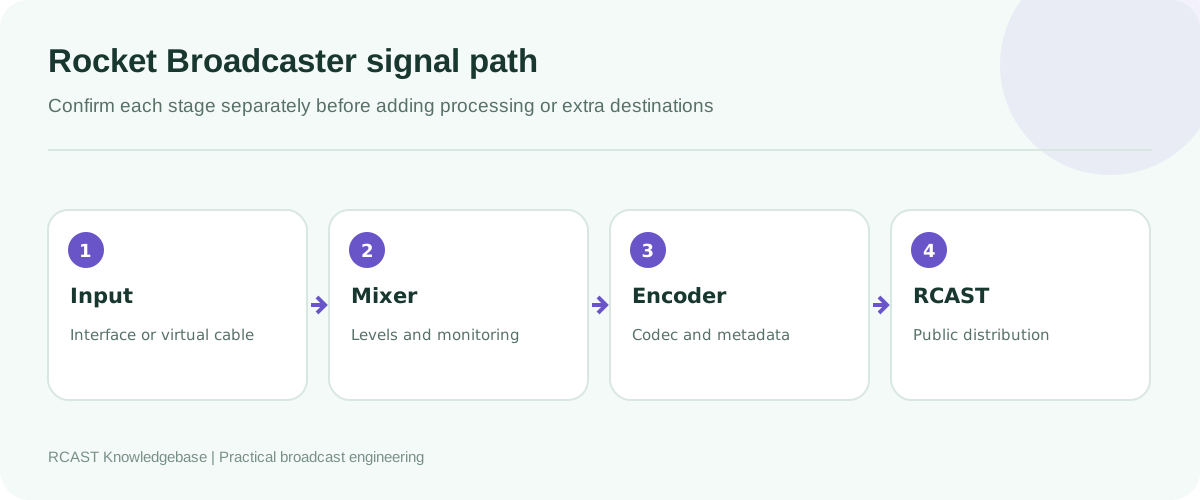
Rocket Broadcaster is an encoder and compact live mixer. It is a good fit when a presenter needs to send a microphone, a physical mixer, a radio automation output or several local sources to a streaming server. It is not a full music scheduling system. If another application handles playlists and commercials, route that application's programme audio into Rocket Broadcaster and let Rocket handle capture, processing, metadata and transmission.
Install the current release from the official Rocket Broadcaster website. Check which functions belong to the free and Pro editions before designing a workflow around multiple streams, advanced processing or specialised metadata capture. Product capabilities can change between releases, so use the documentation that matches the installed version.
Collect the connection details
Open the RCAST service page and record the server type, hostname, source port, source password and any mount point, username or stream ID. These fields are not interchangeable. An Icecast mount normally begins with a slash, while a SHOUTcast stream ID is a number. The public listening URL is not necessarily the address an encoder uses to send audio.
| Field | Icecast | SHOUTcast |
|---|---|---|
| Hostname and port | Required | Required |
| Mount | Required for the source path | Not used |
| Stream ID | Not used | Used by SHOUTcast v2 when supplied |
| Username | Often source or a supplied DJ name | Depends on server mode |
| Password | Source password | Source or DJ password |
Configure the audio devices first
Open the audio device settings before creating the stream. Select the input that carries the programme. A USB mixer may expose several channels, a stereo programme pair and a loopback pair with similar names. Speak into the microphone and play music while watching the individual meters. Only the intended sources should respond.
Use line input for a mixer or processor line output. A microphone input adds much more gain and may distort a line signal even when its software fader looks low. Set the Windows and interface sample rates consistently where practical. A music studio commonly uses 44.1 kHz, while a production or video environment may use 48 kHz. Consistency matters more than changing every device to the largest available number.
For audio produced by another application, use a supported loopback device, an interface loopback channel or a carefully configured virtual cable. Monitor the route before going live. Sending the desktop output can accidentally include notification sounds, browser audio and the delayed public stream, creating an echo loop.
Add the RCAST stream
- Open Broadcast, then Streams.
- Add a stream and give it a descriptive local name.
- Select the exact server protocol. Choose Icecast 2 for an Icecast service and the appropriate SHOUTcast mode for a SHOUTcast service.
- Enter the hostname without a web page path unless the RCAST instructions explicitly say otherwise.
- Enter the source port, password, and the mount or stream ID applicable to that protocol.
- Select the audio codec and bitrate authorised for the service.
- Save the stream, return to the main window and start the broadcast.
The official Rocket Broadcaster documentation describes the Streams window as the location for both server connection and encoding settings. It also notes that fields vary by server type. If a field is disabled after choosing a protocol, do not work around the interface by placing the value in another field.
Select codec, bitrate and channels
MP3 at 128 kbps stereo is a practical compatibility baseline for a general music station. Speech can work well at a lower bitrate, particularly in mono. AAC can deliver good quality at lower rates but should be tested in every player, directory and device important to the station. Do not exceed the bitrate allowance of the service.
Choose stereo only when the source contains useful stereo information. A single microphone does not become more detailed when encoded as two identical channels. Keep peaks below clipping and leave enough headroom for an excited presenter. Processing can improve consistency, but a limiter cannot repair distortion already created by a preamp, mixer or virtual route.
Configure metadata capture
Static station metadata and changing track metadata have different purposes. The station name, genre and website identify the stream. Artist and title should change with the programme. Rocket Broadcaster provides metadata capture options for compatible automation applications and other sources. Configure the method suited to the software that owns the playlist rather than scraping arbitrary text from the desktop.
Review the exact public result. Remove filename extensions, folder names and internal traffic notes. Standardise artist and title tags in the automation library. When no song is playing, send an intentional programme label such as the show name instead of stale information from the previous track.
Commission the connection
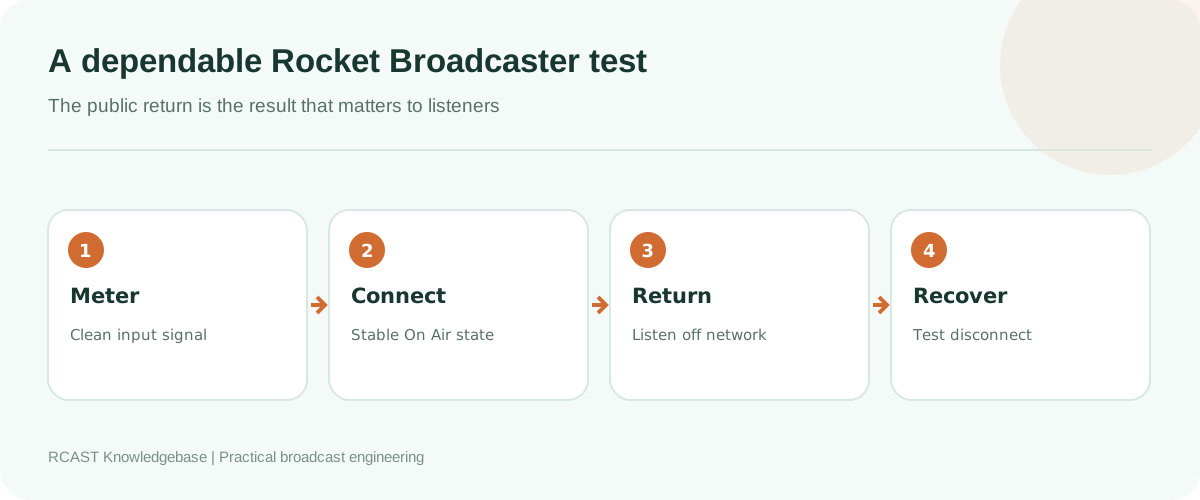
- Play a test item and confirm healthy input and mix meters without red clipping indicators.
- Start the broadcast and wait for a stable On Air state.
- Open the public RCAST player on a phone using mobile data or on another external network.
- Listen to speech, music, quiet transitions and loud material for at least ten minutes.
- Confirm left and right channels, metadata changes and a consistent level.
- Stop Rocket deliberately and verify the expected AutoDJ or fallback response.
- Reconnect and confirm live audio returns cleanly.
Troubleshoot by symptom
Authentication failed
Retype the password and confirm the protocol. Check the Icecast username and mount, or the SHOUTcast stream ID. Copied spaces are common. Do not change audio drivers or processing because authentication happens before those settings matter.
Connection timed out
Confirm the hostname and source port, the service status and outbound firewall access. Test a wired connection. A timeout indicates that the server response cannot be reached in time, while an immediate rejection usually means the host answered but did not accept that connection.
On Air but no audio
Watch the input and master meters. Select the correct capture channel, unmute the physical mixer bus and check Windows microphone privacy permissions. Record the same input locally if possible. A server can receive a technically valid stream containing silence.
Echo or repeated audio
The public player may be feeding back into the captured desktop or loopback output. Mute the player, exclude it from the route or monitor with headphones on a path that does not return to the encoder.
Regular dropouts
Disable computer and network adapter sleep, use Ethernet, and check whether backups or cloud synchronisation consume upload capacity. Compare log timestamps with scheduled tasks. Leave upload headroom instead of operating at the exact measured limit.
Build an operational routine
Save a configuration backup after commissioning. Record the interface name, physical connections, sample rate, protocol and fallback procedure without storing the source password in the document. Before each programme, check the correct input, headphone monitoring, network connection, metadata source and public return. After operating system or driver updates, repeat the external listening test because device names and defaults may change.
Frequently asked questions
Can Rocket Broadcaster send several streams?
Supported editions can handle multiple outputs. Add them one at a time and measure CPU and upload use under programme conditions.
Should the public player stay open in the studio?
It can be used for confidence monitoring, preferably on a separate device. Never route its delayed audio back into Rocket Broadcaster.
Why is there a delay?
Capture buffers, encoding, server buffering, network delivery and player buffering all add latency. Some delay is normal for public internet radio.
Rocket Broadcaster is ready for production only when the audio source, encoder connection, public playback, metadata and fallback have all been tested. Keep the setup simple, document it, and change one stage at a time when diagnosing a fault.