How to Broadcast to SHOUTcast / Icecast from an Apple Mac (macOS)
Log in to your radio control panel and note these details for your stream:
- Server address / Host: e.g.
stream.example.com - Port: e.g.
8000or8010 - Username (Icecast only): usually
sourceor a DJ username - Password: your source password or DJ password
- Mountpoint (Icecast): e.g.
/streamor/live - Stream ID (SHOUTcast v2, if used): usually
1
On macOS you can broadcast to SHOUTcast or Icecast using popular apps like Mixxx, BUTT and LadioCast. Below you see step-by-step examples for each.
1. Using Mixxx (free DJ software for macOS)
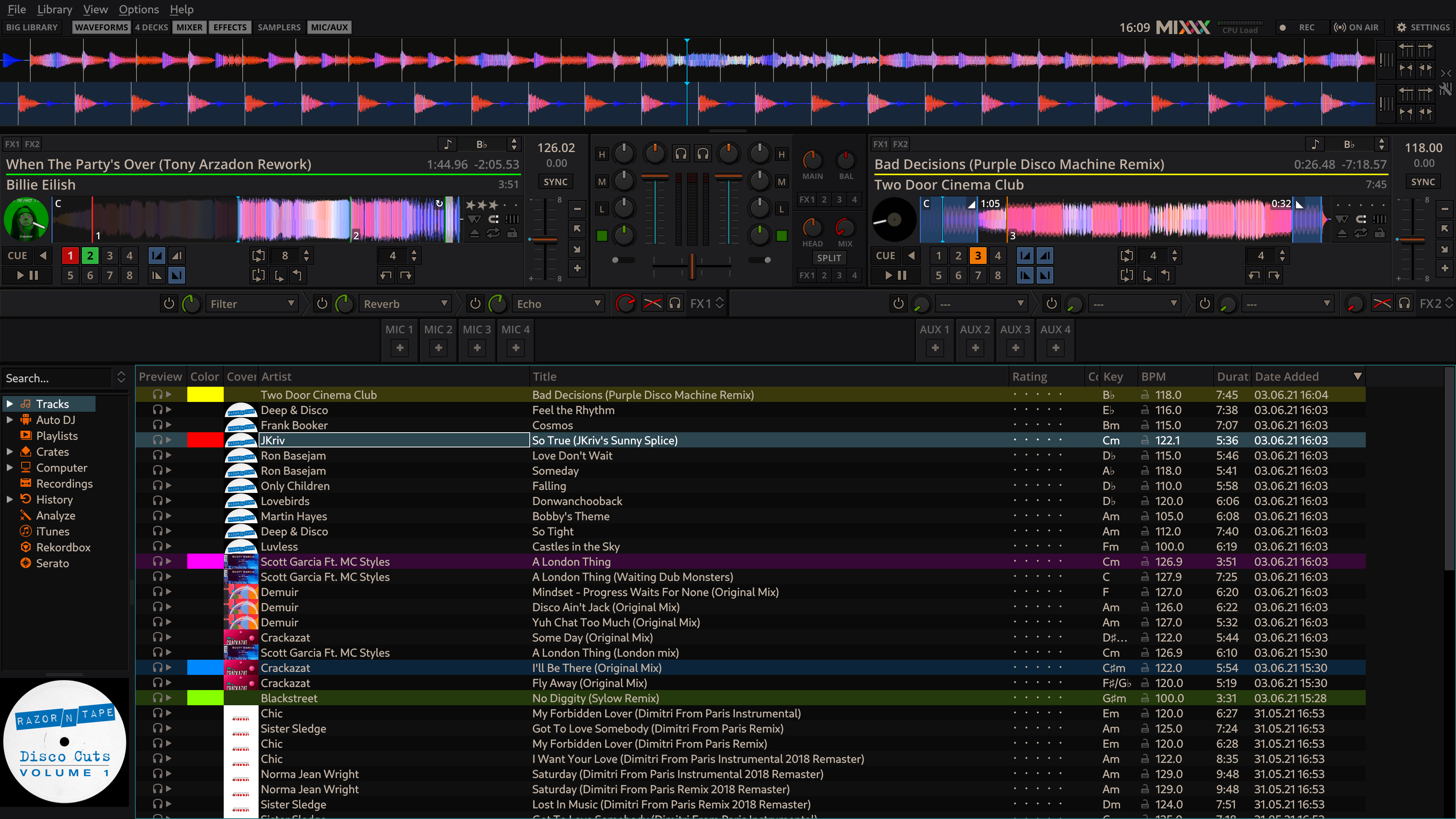
Mixxx is a free DJ application with built-in encoders for SHOUTcast and Icecast. You use it if you want a full DJ deck with playlists, Auto DJ and crossfades.
1.1 Download and install Mixxx
- Go to https://mixxx.org/download/.
- Download the macOS version and install it in your Applications folder.
- Open Mixxx and allow microphone / audio permissions when macOS asks.
1.2 Select your audio device
- In Mixxx, open Preferences ▸ Sound Hardware.
- Set your main audio output (speakers / headphones).
- If you use a USB mixer or audio interface, select it as the input device.
- Click Apply and then OK.
1.3 Configure live broadcasting to SHOUTcast / Icecast
- Open Preferences ▸ Live Broadcasting.
- Click Enable live broadcasting.
- Fill in the server details as shown below.
Example: SHOUTcast (v1 or v2 compatible)
Use this when your host gives you a SHOUTcast server.
- Type:
Shoutcast 1(most SHOUTcast v2 hosts work in v1-compatible mode) - Host:
YOUR_SERVER_ADDRESS - Port:
YOUR_PORT - Login: leave blank for SHOUTcast 1, or use the DJ username if your host requires it
- Password:
YOUR_SOURCE_PASSWORD - Stream name: your station name (required by many hosts)
- Bitrate: e.g.
128 kbpsMP3 (match your plan) - Format:
MP3orOgg Vorbisif supported
Example: Icecast 2
Use this when your host gives you an Icecast mountpoint.
- Type:
Icecast 2 - Host:
YOUR_SERVER_ADDRESS - Port:
YOUR_PORT - Mount:
/YOUR_MOUNTPOINT(for example/streamor/live) - Login: usually
sourceor your DJ username - Password:
YOUR_SOURCE_PASSWORD - Format:
MP3(most common for web players) - Bitrate: e.g.
128 kbpsor whatever your plan allows
1.4 Start your broadcast in Mixxx
- Load a track into a deck and press Play.
- Click the small antenna / broadcast icon in the Mixxx toolbar.
- Mixxx connects to your SHOUTcast / Icecast server and starts streaming.
- If you see an error, double-check host, port, password and mountpoint.
2. Using BUTT (Broadcast Using This Tool)
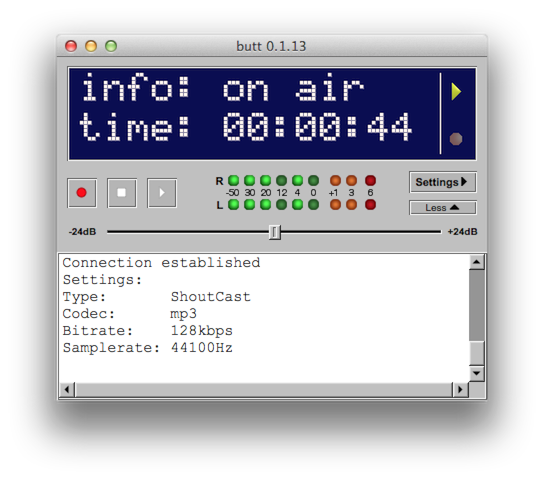
BUTT is a simple encoder that sends audio from your Mac to SHOUTcast or Icecast. It is ideal if you already use another app or hardware mixer to generate the audio.
2.1 Download and install BUTT
- Go to https://danielnoethen.de/butt/ or the SourceForge page.
- Download the macOS version (
.dmg) and install it. - Open BUTT from the Applications folder.
2.2 Select your audio input
- Click Settings.
- Go to the Audio tab.
- Choose your audio device:
- Default device if you use system audio / mic.
- Your USB mixer or interface if you have one.
- Select the Codec as MP3 (or AAC+ if your host supports it).
- Choose a Bitrate that matches your plan, for example
128 kbps.
2.3 Add your SHOUTcast / Icecast server
- In the same settings window, go to the Server tab.
- Click ADD to create a new server profile.
Example: SHOUTcast v1 / v2 server
- Name: anything, for example
My SHOUTcast - Type:
Shoutcast - Address:
YOUR_SERVER_ADDRESS - Port:
YOUR_PORT - Password:
YOUR_SOURCE_PASSWORD - Icecast user: leave empty for SHOUTcast
- Icecast mountpoint: leave empty for SHOUTcast
Example: Icecast 2 server
- Name:
My Icecast - Type:
Icecast - Address:
YOUR_SERVER_ADDRESS - Port:
YOUR_PORT - Password:
YOUR_SOURCE_PASSWORD - Icecast user: usually
sourceor the DJ user from your panel - Icecast mountpoint:
/YOUR_MOUNTPOINT(for example/streamor/live)
Click ADD or SAVE to store the server profile.
2.4 Start broadcasting with BUTT
- Close the settings window to return to the main BUTT screen.
- Make sure the correct server profile is selected.
- Play music or speak into your mixer / microphone.
- Click the Play / Connect button in BUTT.
- The status area shows connected and time counter when streaming works.
3. Using LadioCast (audio router + streamer for macOS)
LadioCast is an audio routing and streaming app for macOS. You can mix multiple inputs and send them to outputs like your speakers and an Icecast / SHOUTcast server.
3.1 Install LadioCast
- Open the Mac App Store and search for LadioCast, or visit the developer’s page.
- Install the app and launch it.
3.2 Basic audio routing
- In the main window, you see several Input channels and Output buses.
- For Input 1, choose your microphone, mixer or audio interface.
- Set Main Output to your speakers or headphones.
3.3 Configure the stream to Icecast / SHOUTcast
Exact names may differ slightly by version, but the idea is the same.
- Enable an Output bus (for example Aux 1) for streaming.
- Assign Input 1 (and other inputs you want) to that output bus.
- Open the Streamer / Encoder settings for that output bus.
- Choose the protocol:
- Icecast 2 for Icecast servers.
- Shoutcast or Icecast (Shoutcast mode) depending on what LadioCast offers.
- Enter the same details as above:
- Host:
YOUR_SERVER_ADDRESS - Port:
YOUR_PORT - Mount (Icecast):
/YOUR_MOUNTPOINT - Username (Icecast): usually
sourceor DJ username - Password:
YOUR_SOURCE_PASSWORD - Codec:
MP3orAAC - Bitrate: e.g.
128 kbps
- Host:
3.4 Start streaming in LadioCast
- Check that input meters move when you speak or play music.
- Click the Connect / Start button for the streaming output bus.
- LadioCast connects to your SHOUTcast / Icecast server and begins broadcasting.
4. Quick checklist if you cannot connect
- Host name spelled correctly, no spaces.
- Correct port, exactly as shown in your control panel.
- Correct password (watch out for copy-paste spaces).
- For Icecast: mountpoint and username are correct.
- Your firewall or router does not block outbound ports (8000, 8010 etc.).
- You did not exceed your bitrate or listener limit on the server.