When an internet radio encoder will not connect, changing several settings at random usually hides the original fault. A better approach is to identify the layer that failed, collect evidence, and test one assumption at a time. This guide provides a repeatable diagnostic workflow for desktop encoders, radio automation systems and hardware codecs connecting to an RCAST SHOUTcast or Icecast service.
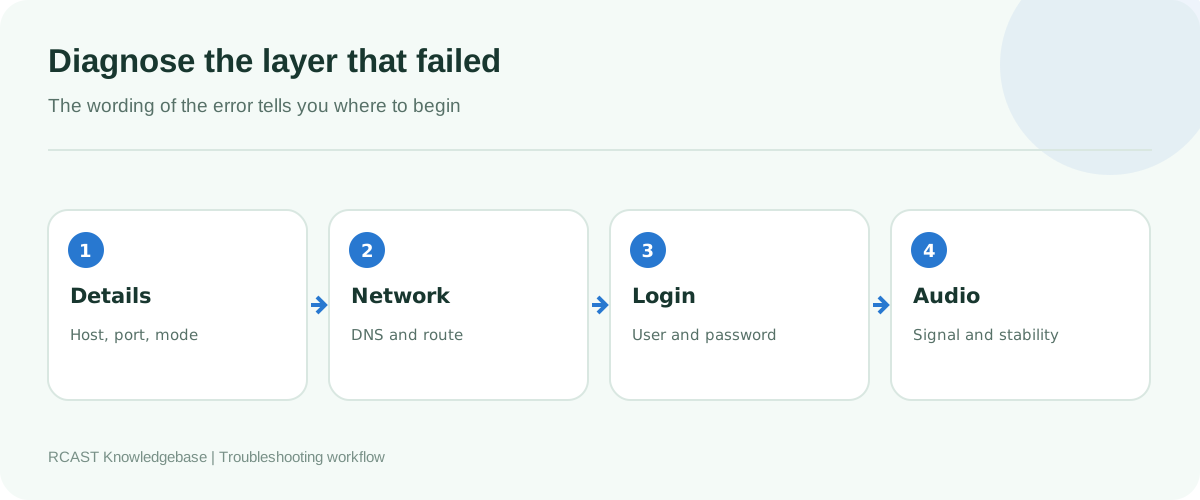
Record the exact symptom before changing anything
Copy the complete error from the encoder log and note its time. Terms such as name not resolved, timeout, connection refused and authentication failed describe different failures. A screenshot of a red status indicator is less useful than the exact log line beside it.
Also record whether the setup worked previously, what changed, and whether another presenter can connect. Changes to a password, router, security product, operating system, audio driver or server assignment narrow the investigation. If every presenter fails at the same moment, start with the service and shared connection details. If only one computer fails, begin with that computer and its network.
Confirm the service is available
Open the RCAST client area and verify that the service is active. Check current server notices and confirm that the hostname and source port shown for the service have not changed. Test the public player separately. Public playback proves that listeners can reach an existing stream, but it does not prove that the source port accepts your credentials.
If AutoDJ is playing, note how the service handles live takeover. Some configurations expect a specific DJ username or source mode. Do not stop a healthy AutoDJ simply to experiment unless you understand the fallback behaviour.
Rebuild the connection profile from authoritative details
Create a new encoder profile instead of repeatedly editing an old one. Copy the hostname, source port and source password from the service page. Select the exact protocol. Icecast uses a mount point and often a source username. SHOUTcast v2 can require a stream ID. These values belong in their named fields and should not be appended to the hostname unless the encoder documentation explicitly requires a combined URL.
| Field | Correct content | Common mistake |
|---|---|---|
| Host | Server name only | Pasting the public player URL or adding https:// |
| Port | Source port shown by RCAST | Using a website port or listener proxy port |
| Password | Current source or DJ password | Using the client account or server admin password |
| Mount | Icecast path beginning with a slash | Using it in a SHOUTcast profile |
| Stream ID | SHOUTcast v2 numeric identifier | Treating it as an Icecast mount |
Type the password manually once. Clipboard content can include a trailing space or newline. Verify keyboard layout and letter case. If the encoder has separate server and directory credentials, ensure the source password is in the server section.
Interpret the network error
Name or host not found
The computer cannot translate the hostname into an address. Check spelling, then test whether ordinary websites open. Flush the local DNS cache only after confirming the hostname is correct. Compare the result on another network. Do not replace the hostname permanently with a copied IP address because server routing can change.
Connection timed out
A timeout means the encoder did not receive a response in time. Test through wired Ethernet, pause VPN software and check outbound firewall rules. Mobile and office networks sometimes restrict uncommon ports. A temporary mobile hotspot is a useful comparison: if the same profile works there, investigate the original router or provider rather than changing the encoder password.
Connection refused
The destination answered but did not accept a connection on that port. Recheck the source port and service status. A refused connection is normally more specific than a timeout. It can indicate the wrong port, a service that is restarting, or an endpoint that is not listening.
Connection opens and immediately closes
Review the protocol selection, mount, stream ID and codec allowance. Some encoders show a brief connected state before the server rejects an invalid source handshake. Read the lines immediately before and after the disconnect rather than relying on the main status label.
Resolve authentication failures
An authentication error proves that the encoder reached a service capable of replying. Concentrate on credentials and protocol fields. Confirm whether the service uses a master source password or individual DJ accounts. For a DJ account, use the username format displayed in the service instructions. Avoid guessing separators or adding a stream ID to the username unless required.
If credentials were recently changed, update every saved encoder and disable obsolete profiles. A second computer repeatedly trying an old password can create confusing log entries. Ask presenters to stop their encoders during the controlled test.
Handle source already connected errors
Most streaming mount points accept one active source. Another presenter, automation computer or abandoned encoder session may already own it. Contact the current operator before disconnecting anything. If no source should be live, stop all known encoders and allow the server time to release the previous session. Then connect one designated test machine.
For live takeover from AutoDJ, follow the supported workflow. Connecting to the wrong port or mount may compete with AutoDJ instead of taking over cleanly. Test the return to automation before using the procedure during a scheduled show.
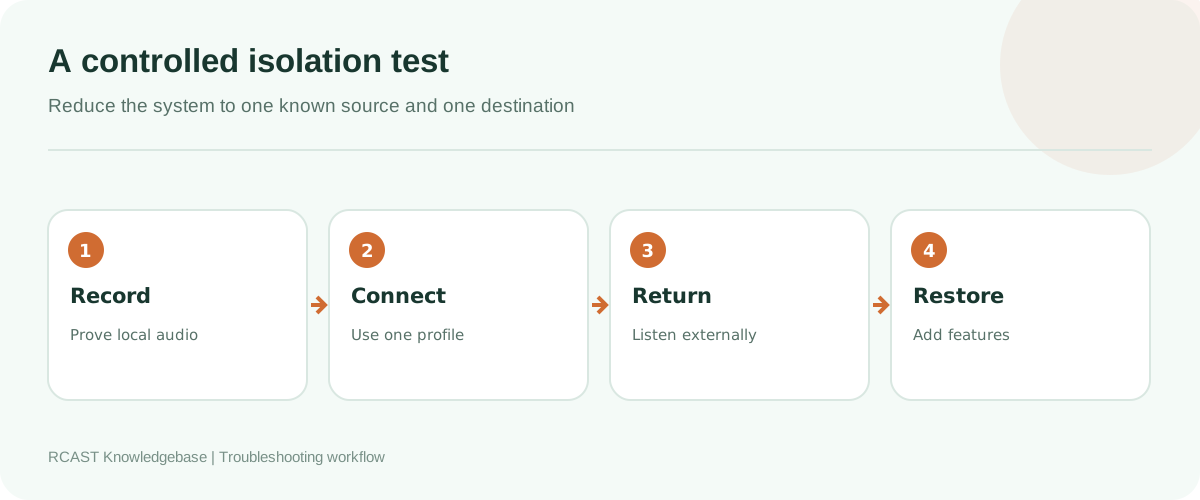
Separate connection success from audio success
A connected encoder can transmit silence. Watch its input meter and make a short local recording from the same device. If the recording is silent, inspect the mixer bus, interface channel, Windows or macOS privacy permission and mute state. If the recording works but the public stream is silent, verify the encoder source selection and master level.
Do not test with the delayed public stream routed back into the encoder. That can produce echo or feedback. Use headphones and, where possible, monitor the public return on a separate phone using mobile data.
Investigate connections that drop after starting
Compare the configured bitrate with stable upload capacity. One 128 kbps stream needs more than 128 kbps of real upstream bandwidth because network overhead and variation require headroom. Multiple destinations multiply the requirement. Prefer Ethernet, disable network adapter sleep, and pause cloud backup during a test.
Regularly timed disconnections often point to power saving, router session policies, security software or a scheduled task. Random dropouts are more consistent with Wi-Fi interference or congestion. Correlate encoder log timestamps with router logs and computer events.
Check codec and format constraints
Use a codec and bitrate allowed by the service. Begin with a conservative MP3 profile when testing broad compatibility, then restore the intended format after the connection is stable. Keep sample rates consistent through the audio chain where practical. Codec configuration normally does not cause a password rejection, so do not alter it until network and authentication tests pass.
Use a clean isolation test
- Stop all other source applications for the affected stream.
- Create a new profile using verified RCAST details.
- Select one known audio device and disable optional processing.
- Send one supported MP3 stream to one destination.
- Listen through the public URL on an external network.
- Leave the test connected for at least fifteen minutes.
- Add metadata, processing and extra destinations one at a time.
If the clean test works, the server and basic network path are healthy. The first feature that causes the failure identifies the next investigation area. Keep the known working profile as an emergency fallback.
Prepare useful information for support
Provide the service ID, server hostname, source port, encoder name and version, operating system, exact error text and timestamps with timezone. Explain whether the problem occurs on another network and whether public playback works. Include a screenshot with passwords hidden. Never send a source password in a public ticket attachment or forum post.
A concise evidence package allows support to compare your attempt with server logs. Statements such as “it does not work” require another round of questions, while an exact timestamp and error often identify the failed stage quickly.
Frequently asked questions
Why does the player work when the encoder cannot connect?
Listeners and sources use different paths and often different ports. Public playback confirms the listener side, not source authentication.
Should I reinstall the encoder?
Not initially. Reinstallation rarely corrects a wrong port, blocked route or rejected password. Export settings first if reinstalling becomes necessary.
Can antivirus software block an encoder?
Yes. Review its event history and create a narrow outbound rule for the trusted application. Do not disable protection permanently.
Why does the connection work through a phone hotspot?
The original router, firewall, DNS service or internet provider is probably affecting the route. Keep the encoder profile unchanged while comparing networks.
The fastest repair comes from classifying the failure correctly. Verify the service, rebuild the profile, test network reachability, resolve authentication, prove local audio and then observe stability. That order avoids unnecessary changes and leaves a documented working configuration for the next presenter.