An internet radio player can look correct and still fail because the browser blocks the stream, refuses autoplay, cannot decode the selected format or receives an incorrect URL. This guide explains how to integrate a dependable HTML5 player into a website, how HTTPS and CORS affect playback, and how to diagnose failures with evidence from the browser.
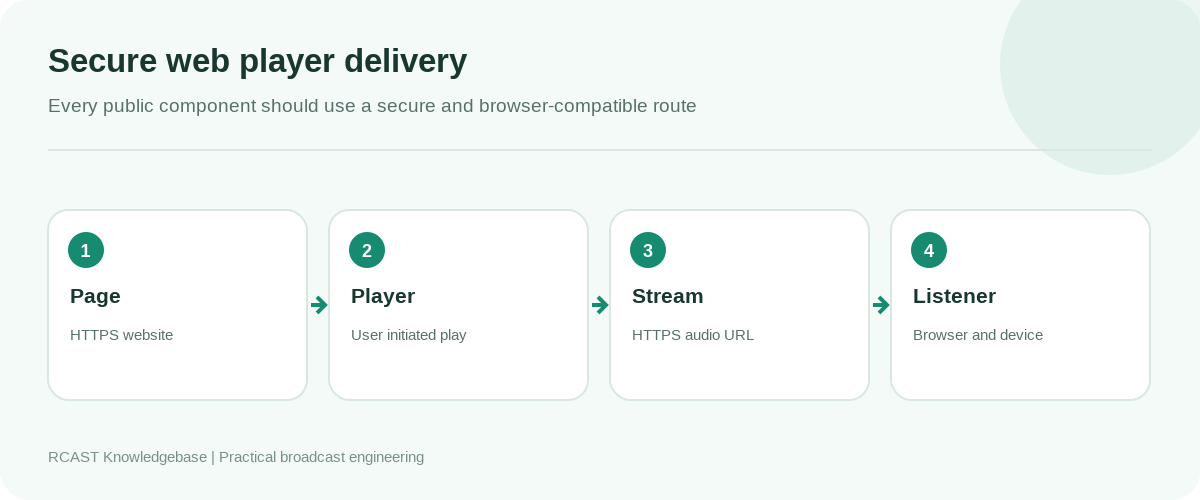
Begin with the public stream URL
Use the public listening URL supplied by RCAST, not the source address used by an encoder. Test it directly in a current browser before embedding anything. If the direct URL does not play, adding JavaScript or WordPress cannot repair the stream. Confirm the service is online, the mount or stream ID is correct and the codec is supported by the target browser.
Prefer an HTTPS stream URL for an HTTPS website. Browsers treat insecure audio loaded by a secure page as mixed content and may upgrade or block the request. A URL that worked on an older HTTP site can fail after the site moves to HTTPS. Keep certificates valid across every hostname in the listening path, including redirects.
Use the native audio element as a baseline
The HTML <audio> element is the simplest standards-based test. It provides native controls and allows fallback text. For a live stream, use preload="none" so merely opening the page does not create unnecessary listener connections.
<audio controls preload="none">
  <source src="https://your-secure-stream.example/live" type="audio/mpeg">
  Your browser cannot play this stream.
</audio>
Use the MIME type that matches the delivered codec. Do not label AAC as MP3 to force compatibility. The browser documentation for the audio element permits one or more source elements and lets the browser choose a supported source. A custom player still depends on the same underlying media support.
Do not depend on autoplay
Modern browsers commonly block audible playback until the visitor interacts with the page. Build a clear Play button and treat a rejected play() promise as a normal state, not a fatal application error. Never disguise the interaction or start unexpected audio when a visitor scrolls.
const audio = document.querySelector('#station-audio');
const button = document.querySelector('#station-play');

button.addEventListener('click', async () => {
  try {
    await audio.play();
    button.textContent = 'Pause';
  } catch (error) {
    button.textContent = 'Tap to play';
  }
});
Keep the control keyboard accessible, expose a visible focus state and update its accessible label when state changes. A decorative icon without text or an accessible name is difficult for screen reader and keyboard users.
Understand HTTPS, CORS and metadata
HTTPS protects the page and audio transport from modification in transit. CORS is a separate browser policy. Basic playback may work without the same permissions required for JavaScript to inspect response data, use Web Audio analysis, draw visualisations or fetch metadata from another origin.
If a player requests metadata through JavaScript, the metadata endpoint must allow the website origin. Do not add wildcard CORS headers blindly to authenticated administration endpoints. Expose only the public information required by the player. Keep source and admin credentials entirely outside browser code because every visitor can inspect that code.
| Requirement | Typical dependency | Failure symptom |
|---|---|---|
| Basic audio playback | Reachable stream and supported codec | Player remains silent or reports media error |
| Secure page integration | HTTPS stream and valid certificate | Mixed content warning or blocked request |
| JavaScript metadata | Public endpoint with suitable CORS policy | Audio plays but title does not update |
| Audio visualiser | CORS-compatible media and Web Audio | Playback works but analysis fails |
Integrate the player into WordPress safely
Use a child theme, a small dedicated plugin or the platform's supported custom HTML block. Do not edit a commercial theme's core files because an update can erase the player. Load JavaScript once and avoid pasting the same player bundle into several widgets. If a caching or optimisation plugin delays scripts, exclude the player only after confirming that delay is the cause.
Sanitise any station name, artist, title or artwork URL displayed by custom code. Metadata is external input even when it normally comes from your own automation. Insert text as text rather than concatenating untrusted values into HTML. Restrict artwork to expected HTTPS sources.
Design for a live stream
A live station is not an ordinary audio file. A progress bar and duration may have no useful meaning. After a network interruption, resuming from an old buffer is worse than reconnecting near the live edge. Display a clear connecting state, allow the listener to retry, and avoid aggressive reconnect loops that create many rapid requests during an outage.
Show the station name even when metadata is unavailable. Treat artist, title and artwork as enhancements. If the metadata endpoint fails, playback should continue. Reserve space for artwork and text so the page does not jump whenever a title changes.
Prevent accidental duplicate playback
Responsive designs sometimes render separate desktop and mobile player components, both connected to the same stream. Use one audio instance and adapt only the visual layout. Stop obsolete instances when navigating a single page application. Multiple hidden connections inflate listener counts and waste transfer.
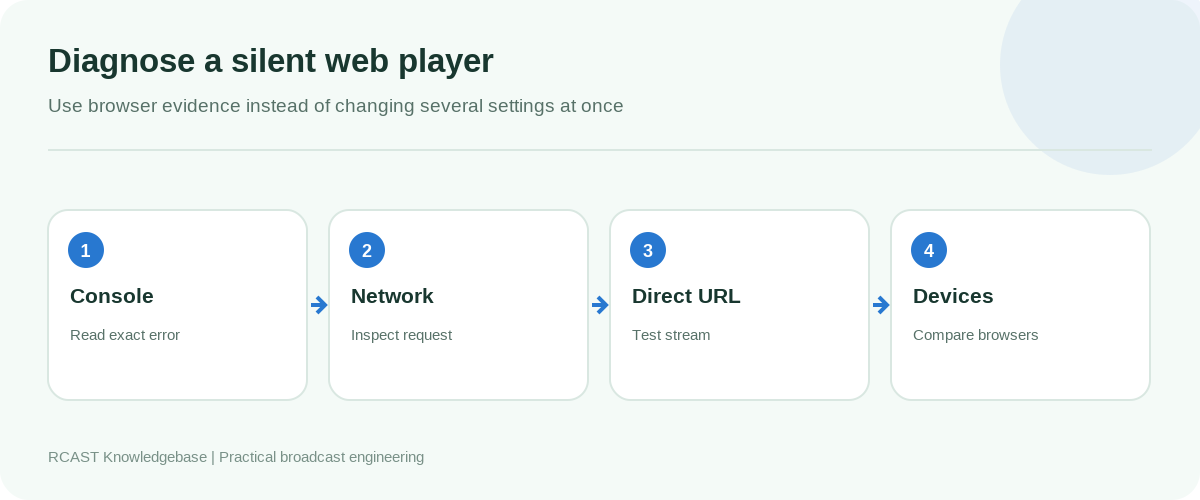
Diagnose a player that does not work
- Open the stream URL directly in the same browser.
- Open Developer Tools and read the Console message.
- Use the Network panel to inspect the request, redirects, status and content type.
- Check for mixed content, certificate, CORS and codec errors.
- Test a private window to remove extensions and stale application state.
- Test another browser and a phone on mobile data.
- Reduce the page to a native audio element before debugging the custom interface.
The Play button does nothing
Confirm the click handler is loaded and no JavaScript error stopped execution. Check whether an overlay intercepts the click. Call playback directly from the user action and handle promise rejection.
It works on desktop but not on iPhone
Check codec support, autoplay assumptions and whether the page replaces the audio element during layout changes. Test the direct HTTPS stream on the device. Keep controls large enough for touch and avoid hover-only behaviour.
Audio plays but metadata is blank
Inspect the metadata request separately from the audio request. Confirm the endpoint returns current public data, valid JSON when expected and an appropriate CORS response. Verify the automation actually sends artist and title.
The player stops after a while
Check whether the source stream also drops, whether the page is suspended in the background and whether reconnect logic runs. Mobile operating systems may restrict background web playback. An installed app and a web page do not have identical lifecycle privileges.
Test before publishing
Test Chrome, Firefox, Safari and Edge where they matter to the audience, plus current Android and iOS devices. Check keyboard operation, screen reader labels, narrow screens, slow networks, stream downtime and metadata containing long names or non-English characters. Verify that one page view creates only the intended listener connection.
Frequently asked questions
Should the player start automatically?
No. Browser policy may block it and unexpected sound is poor user experience. Provide an obvious Play control.
Do I need CORS just to play audio?
Not always. JavaScript access, metadata requests, Web Audio and visualisation can impose additional CORS requirements even when simple playback succeeds.
Can the source password be hidden in JavaScript?
No. Anything delivered to a browser is visible to the visitor. A public player needs only public listening and metadata endpoints.
A reliable radio player begins with a valid public stream and uses progressive enhancement. Make the native audio path work first, then add branding, metadata and artwork without allowing those optional features to interrupt playback.